If you want to control your qBittorrent server using the web interface, follow these steps:
- In the menu bar, go to
Tools>Options - In the next window, select the
Web UI option
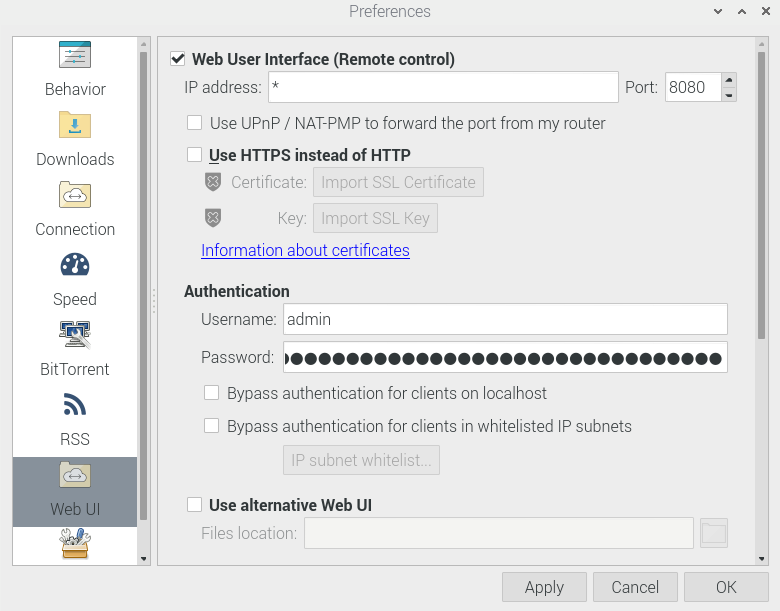
- Check the box for
Enable the Web User Interface(Remote control) - Select a
port(default is8080) - Set up a
usernameandpassword(default is username:admin/ password:adminadmin)
Click OK to save the settings.
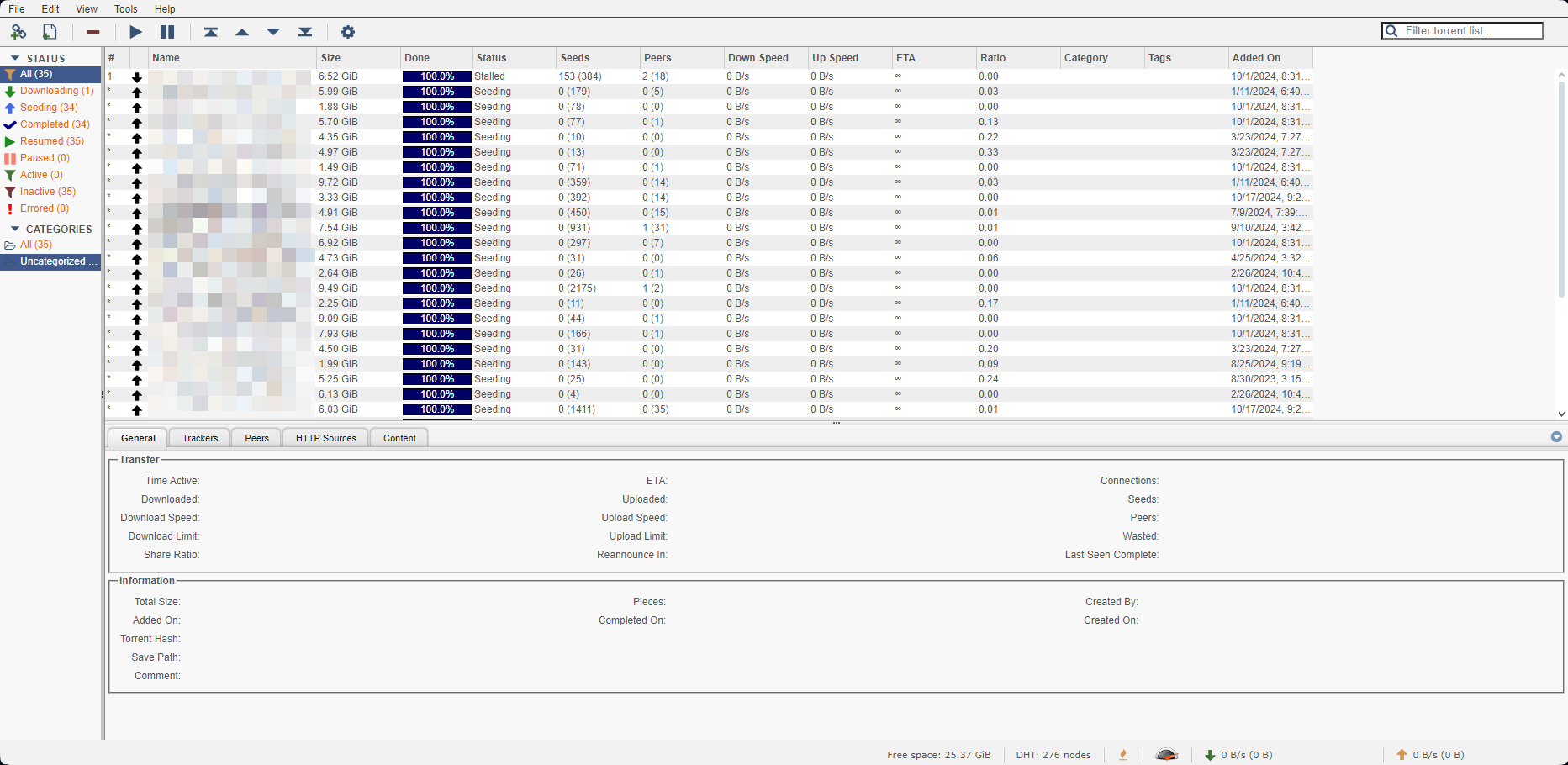
Now you can access your server from a browser by entering the IP address and port of your qBittorrent server, for example: 192.168.1.100:8080 as shown below:
Additionally, you can access it from your Android device if you install qBittorrent Client or qBittorrent Client Pro.
Security Considerations
When enabling the web interface:
- Change the default username and password immediately
- Consider using a non-standard port to reduce exposure
- If accessing from outside your network, ensure proper firewall configuration
- Consider using VPN access for additional security
This setup allows you to manage your torrents remotely, check download progress, and control your qBittorrent instance from anywhere on your network.